


All access is read-only. Openlayer reads chat messages, users, and the
Teams app catalog, and never writes to, modifies, or deletes anything in your
Microsoft 365 tenant.
How it works
- Lists your bots. Connecting reads every app with a bot in your tenant’s Teams app catalog, including Teams Store apps, into the Bots tab. Every bot starts disabled, so nothing is ingested until you opt in.
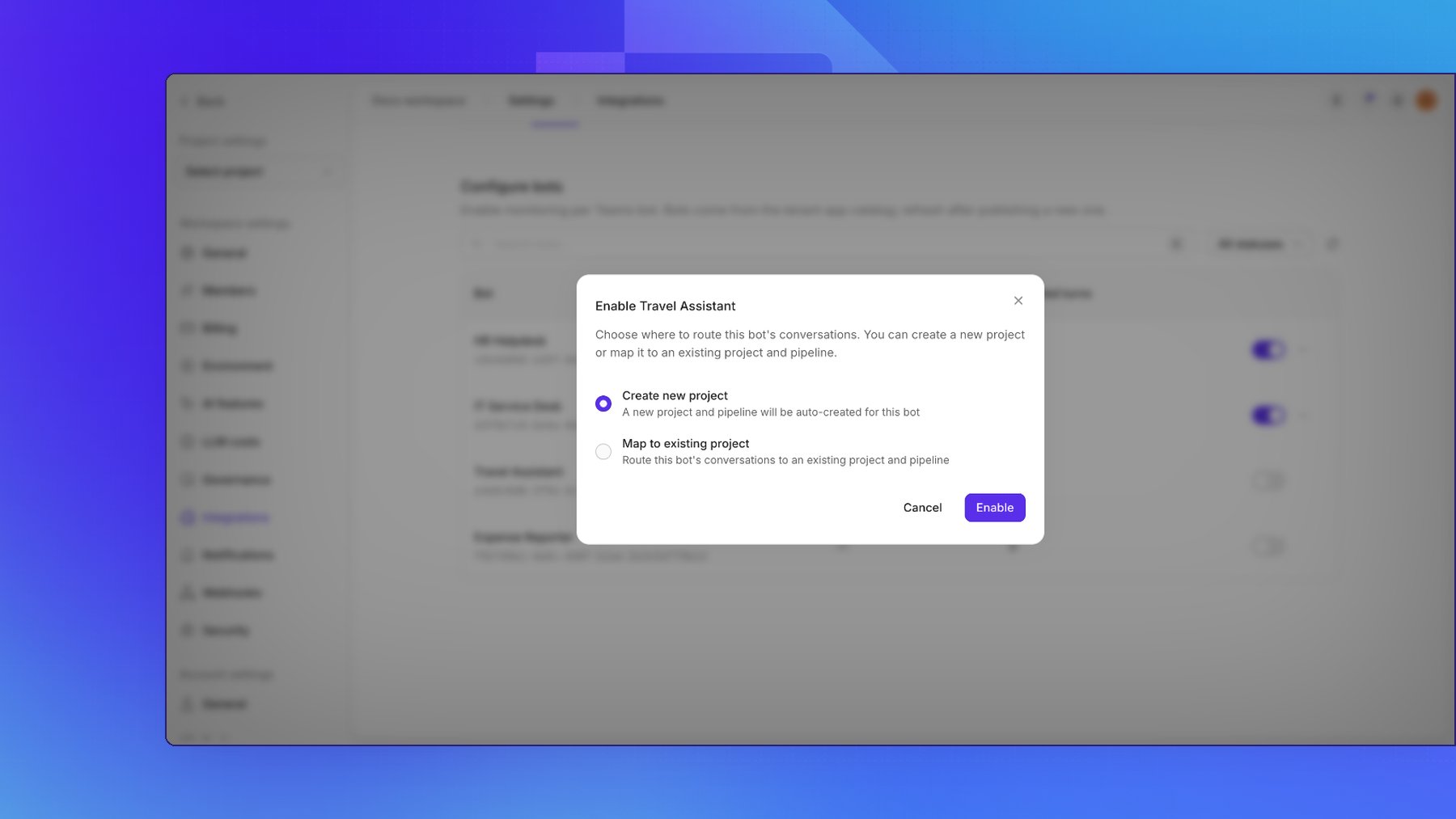
- Maps each bot to one project. Enabling a bot creates an Openlayer project for it, or writes into a project and pipeline you already have.
- Pulls on a schedule. Periodic sync reads the Teams chats of the users in your tenant and keeps only one-on-one chats with the bots you enabled. You can also run a sync immediately, or backfill history.
Prerequisites
- Microsoft Teams licenses for the users who chat with your bots.
- The bots you want to monitor in your tenant’s Teams app catalog.
- An Entra ID app registration with a client secret, the application permissions below, and admin consent.
- An Openlayer workspace where you are an admin. Connecting, enabling bots, and disconnecting are admin-only.
Register the Entra app
Register a dedicated app for this connector.- In the Azure portal, go to Microsoft Entra ID → App registrations → New registration.
- Name the app (for example,
Openlayer Microsoft Teams bots) and register it. - Under Certificates & secrets, create a Client secret and copy its Value. You cannot read it again later.
- Under API permissions → Add a permission → Microsoft Graph → Application permissions, add the three permissions in the table below.
- Select Grant admin consent for the tenant.
All three are application permissions and require admin consent. A delegated permission is not a
substitute.
Setup guide
Step 1: Connect
In Openlayer, go to Settings → Integrations, open Microsoft Teams bots, enter Tenant ID, Client ID, Client secret, and Microsoft cloud, then click Connect.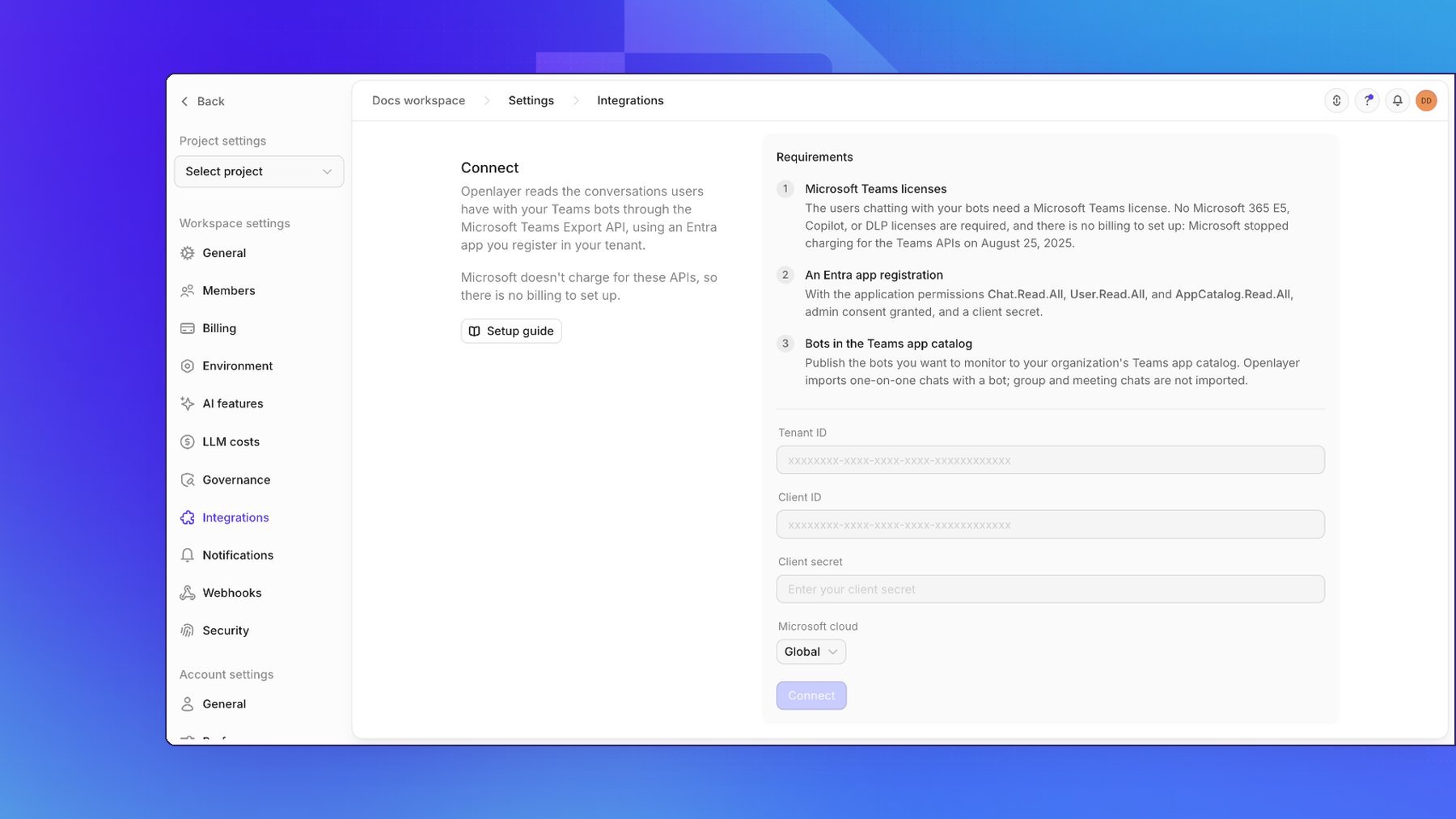
Step 2: Set the sync schedule
On the General tab, Periodic sync pulls new conversations every 60 minutes by default. Turn it off to pause ingestion without disconnecting, or click Sync now to queue a sync immediately. Initial sync range is how far back a newly enabled bot’s history is read: Last 7 days (the default), All available data, or a Custom start date.Bots
The Bots tab lists every app with a bot in your Teams app catalog. Store apps are included, so a tenant can list thousands. Use the search box and the Enabled/Disabled filter to find yours. After you publish a bot to the catalog, click the refresh button to read the catalog again.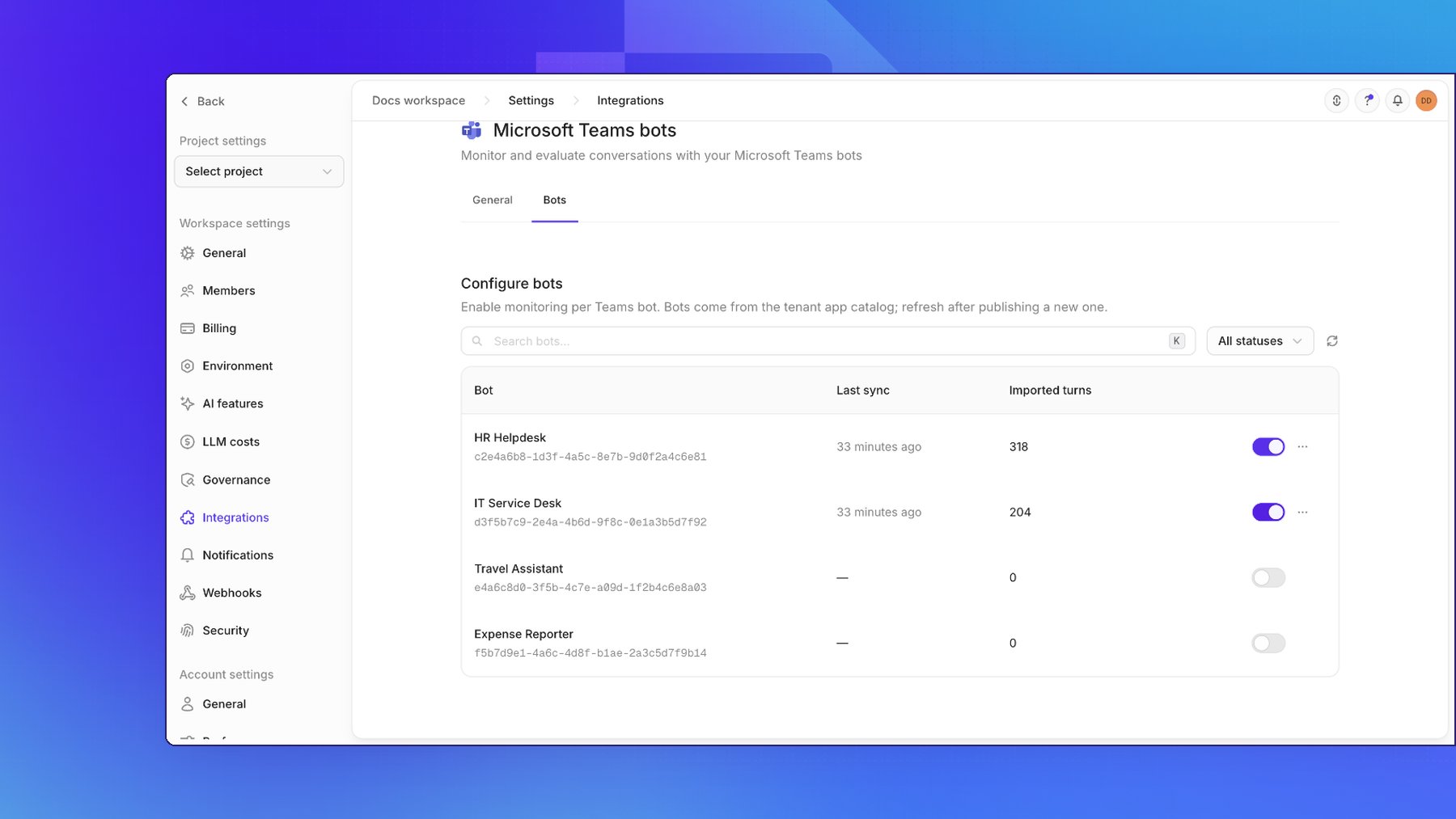
- Create new project (the default) — Openlayer creates a project named
Teams - <bot name>and a pipeline for that bot - Map to existing project — pick an existing project and pipeline instead
Backfill
Backfill re-reads history for every enabled bot, not only the row you opened it from, starting from the initial sync range or a custom start date. Rows already stored are skipped, so running it again does not create duplicate records.Connect more tenants
Each Microsoft Entra tenant is one connection, synced on its own, so one workspace can monitor the bots of several tenants: a subsidiary’s, a partner’s, or a second region’s. After the first tenant is connected, click Add tenant on the General tab. Enter an optional Label, such asEurope, and the tenant’s Tenant ID, Client ID, Client secret, and
Microsoft cloud, then click Connect. Openlayer checks them the same way it checks the first
connection. Each tenant can be connected to a workspace once.
With two or more tenants connected:
- General lists the tenants with their label and tenant ID, status, and last sync. Hover an error status to read the error. Click a tenant to open its settings: periodic sync, initial sync range, Sync now, and Disconnect tenant. ← All tenants goes back to the list.
- Bots lists the bots of every tenant, with a Tenant column and a tenant filter. A Teams Store bot appears once per tenant. The refresh button reads every tenant’s catalog.
- Enabling a bot creates a project named
Teams - <bot name> (<label>), so the same bot in two tenants lands in two projects. Bots enabled while the workspace had one tenant keep their names.
Connect a tenant from another organization
Admin consent in your tenant only covers your tenant. To read another organization’s tenant, an admin of that tenant must consent too. Either make your app multitenant, or have the other organization register its own app. Make your app multitenant- On your app registration’s Authentication page, set Supported account types to Accounts in any organizational directory.
- On the same page, add a Web redirect URI, such as your Openlayer URL. Microsoft sends the admin there after they consent.
- Add every permission the app needs first. Consent covers the permissions the app has at that moment, so a permission added later needs consent again.
-
Send this link to an admin of the other tenant, with
<tenant-id>set to their tenant ID and<client-id>to your app’s client ID:They sign in with their account in that tenant and accept. Granting Microsoft Graph application permissions takes a Privileged Role Administrator or Global Administrator; an Application Administrator or Cloud Application Administrator can’t (Grant tenant-wide admin consent). - In Openlayer, click Add tenant and enter their tenant ID with your app’s client ID and client secret.
What lands in Openlayer
Openlayer imports one-on-one chats between a user and an enabled bot. Each user message and the bot replies that follow it become one inference row:
The user id is the user’s email in lowercase, taken from the Entra
mail attribute. When mail is
empty, Openlayer uses the user principal name, and when neither is set, the Entra object id. The
object id is also kept in each row’s metadata as aadUserId, so it stays stable if a user’s email
changes. New rows go to the new address.
Bot replies sent as Adaptive Cards are imported as text. A bot message with no user message before
it, such as a welcome message, is imported with an empty input.
The latest exchange in a chat is imported once the user sends their next message, or on the first
sync at least 10 minutes after it. This lets Openlayer wait for every reply before writing the
row.
Each row’s metadata also records the connection and tenant it came from, as connectionId and
connectionTenantId.
Openlayer stores only conversations with the bots you enable. Messages in chats without a bot, or
with a bot you have not enabled, are discarded and never stored. Metadata keeps identifiers and types
only.
Evaluating the ingested data
Once conversations are flowing, evaluate your Teams bots the same way you evaluate application traffic:- Create tests to score response quality, safety, or tone
- Detect PII or toxicity in prompts and replies
- Use governance frameworks to evidence AI-usage controls with real traffic
Disconnecting
On the General tab, click Disconnect Microsoft Teams bots and confirm. With several tenants, open the tenant and click Disconnect tenant; the other tenants keep syncing. Disconnecting stops syncing conversations. Projects, pipelines, and records already ingested are kept. In Entra, remove admin consent or delete the client secret if that app should no longer read Teams chats.Limitations
- One-on-one chats only. Group and meeting chats with a bot are not imported.
- Transcript only. Openlayer reads what the user and the bot said. Tool calls, retrieval steps, model names, and token usage happen inside the bot and are not available from the Teams Export API.
- Scheduled, not real time. Conversations arrive on the next sync, and the latest exchange in a chat waits as described above.
- Up to 200 users per sync. Each sync reads the chats of up to 200 users with enabled accounts and rotates through the rest, so in a large tenant each user’s chats are read less often.
- Guests are read in your tenant only. Guest accounts are synced like members, but only their chats hosted in your tenant. Chats in their own organization’s tenant need a connection to that tenant.
- No China (21Vianet). Only the Global, US Government (L4), and US Government DoD (L5) clouds are supported.
Troubleshooting
Fix a 402 error
Microsoft no longer meters the Teams APIs, but a tenant can still answer402 Payment Required when
the Entra app has no Azure subscription associated with it. Associating one does not incur charges
for the Teams APIs. You need Contributor on an Azure subscription in the same tenant and
owner of the app registration. Metered-API billing exists only in the Global cloud.
Run Microsoft’s
association command
in Azure Cloud Shell or the
Azure CLI, then click Sync now:
<client-id> is the Entra app’s Client ID, and <resource-group> is an existing resource group
in that subscription.